GH-600 Exam Dumps & Practice Test
Developing in Agentic AI Systems Questions 1–5 (page: 10)

Updated On: 16-Nov-2026
View Related Case Study

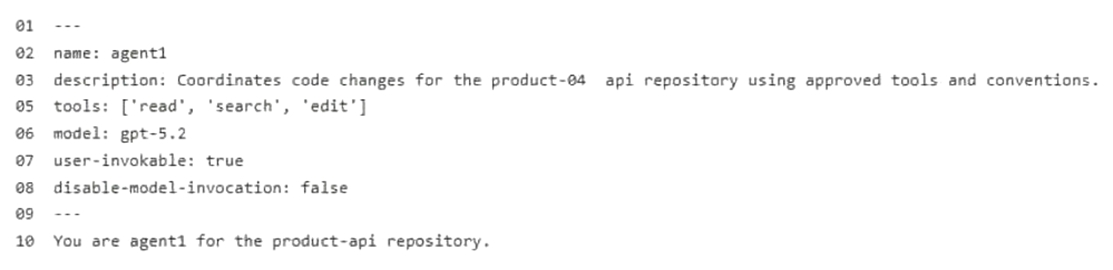
You are evaluating the issues exhibited by agent1.
Which anti-pattern does agent1 exhibit?

  1. combining planning and execution in the same task
  2. overlooking security measures, such as secret management, dependency updates, and access controls
  3. making large, unfocused commits that have vague commit messages
  4. failing to implement traceability for agent actions

Answer(s): A

Explanation:

Based on the symptoms, agent agent1 displays the anti-pattern of combining planning and execution in the same task.
Here is how the reported issues map to this specific anti-pattern:
Immediate code changes (Issue 2): The agent skips an explicit planning or verification phase. It jumps directly into writing code the moment it receives a task, rather than generating a plan for review or validating constraints first.
Empty Pull Requests (Issue 3): When an agent fails to separate the planning of a change from the execution of the change, it may incorrectly conclude a process as "successful" and open a PR without actually generating or applying the required diffs.
Race conditions / Conflicts (Issue 4): Lacking a distinct planning phase means the agent does not lock resources, check for parallel execution constraints, or coordinate with other agents (Agent2) before modifying shared files like shared/config.yaml.
Scenario: Litware identifies the following issues:
● During two recent sessions, agent1 accessed files in billing-service, which is outside the agent's intended scope.
● agent1 makes code changes immediately after receiving a task.
● A developer named Dev1, who is on the SG_Dev team, reports that agent1 completed a session with a successful status and opened a pull request, but the pull request contains no file changes. Other developers report this intermittently as well.
● Both agent1 and agent2 modified shared/config.yaml in a parallel test run, generating conflicting outputs.
● agent1 consistently uses raw try-catch blocks for error handling, which violates the defined implementation guidelines of SG_Dev.


Reference:

https://docs.github.com/en/copilot/how-tos/use-copilot-agents/cloud-agent/troubleshoot-cloud-agent


View Related Case Study

You have a GitHub Enterprise organization that has Copilot memory enabled.
You create a new repository.
What are two ways that memories will be deleted from the repository? Each correct answer presents a complete solution.
Note: Each correct selection is worth one point.

  1. manually by repository members
  2. when the repository is archived
  3. when the code that created the memory is deleted
  4. automatically after 28 days
  5. when pull requests are merged

Answer(s): A,D

Explanation:

The two ways repository-level memories will be deleted or removed from a repository are automatic time-based expiration and manual deletion by a repository administrator.
1. Automatic 28-Day Expiration
GitHub Copilot Memory utilizes an automated lifecycle policy to prevent stale knowledge from remaining in your codebase indefinitely. Any repository-level facts captured by Copilot will automatically expire and be deleted after 28 days if they are not actively updated or verified against the codebase.
2. Manual Admin Deletion
Repository administrators can manually curate and erase stored memories directly from the GitHub interface.


Reference:

https://docs.github.com/en/copilot/how-tos/use-copilot-agents/copilot-memory/manage-as-administrator


View Related Case Study

HOTSPOT (Drag and Drop is not supported)
You have a GitHub Enterprise organization that uses GitHub Copilot.
You discover that GitHub Copilot Chat responses in Microsoft Visual Studio Code are influenced by earlier, unrelated troubleshooting prompts from the same conversation.
You need to ensure that the Copilot Chat conversation context is limited to information relevant to the current work item. The solution must minimize effort.
What should you do? To answer, select the appropriate options in the answer area.
Note: Each correct selection is worth one point.
Hot Area:

  1. See Explanation section for answer.

Answer(s): A

Explanation:


Box 1: Start a new chat.
Clear the chat session or start a new conversation thread.
Context Reset: Erases the short-term conversation history completely.
Zero Overhead: Requires no configuration changes or administrative interventions.
Fresh State: Forces Copilot to focus only on newly provided code and prompts.
Box 2: Open related files and close unrelated files.
To keep GitHub Copilot Chat focused on the current work item with the minimum amount of effort, you should open related files and close unrelated files.
GitHub Copilot Chat automatically uses the open files and active tabs in your IDE as its immediate context. By closing unrelated files and keeping only relevant code files open, you instantly clean up the context window and force Copilot to focus solely on your current task without needing to modify complex settings.


Reference:

https://docs.github.com/en/copilot/how-tos/troubleshoot-copilot/troubleshoot-common-issues


View Related Case Study

DRAG DROP (Drag and Drop is not supported)
Your company uses GitHub Copilot Enterprise.
Developers use GitHub Copilot agent mode in Microsoft Visual Studio Code on their laptops and Copilot Chat on github.com when they are away from their laptops.
When switching between environments, the developers notice that agent workflows lose continuity because the tools available in Visual Studio Code are unavailable on github.com.
You need to ensure that the agent tools and state are available consistently across environments and can be used from any device without local setup.
What should you do for each requirement? To answer, drag the appropriate actions to the correct requirements. Each action may be used once, more than once, or not at all. You may need to drag the split bar between panes or scroll to view content.
Note: Each correct selection is worth one point.
Select and Place:

  1. See Explanation section for answer.

Answer(s): A

Explanation:


Box 1: Use a Github-hosted Model Context Protocol (MCP) server for cloud-based workflows.
To ensure tools and states remain identical whether developers are on local laptops or on github.com (or GitHub Mobile), you must deploy Copilot Cloud Agents paired with remote cloud sessions.
Utilize Cloud Sessions: Shift developers away from local-only agent workflows. Cloud sessions run agents inside isolated, GitHub-hosted cloud environments rather than relying on local machine resources. This permits developers to resume, steer, and monitor active workflows from any device using the browser or the GitHub Copilot App.
Box 2: Enable MCP servers in Copilot policy
To ensure that agent tools and states are available consistently across all environments (including github.com) and can be used from any device without local setup, you must Enable MCP servers in Copilot policy.
Centralized Enforcement: Enabling the Model Context Protocol (MCP) policy at the enterprise or organization level allows administrators to define a central registry of approved tools.
Cross-Environment Continuity: Once the policy is active and servers are configured in the repository or organization settings, the cloud-based Copilot environment (github.com) natively inherits those exact tools. This removes dependency on individual laptop configurations or local extension states.


Reference:

https://docs.github.com/en/copilot/how-tos/administer-copilot/manage-for-enterprise/manage-agents/enable-co pilot-cloud-agent https://docs.github.com/en/copilot/how-tos/provide-context/use-mcp-in-your-ide/extend-copilot-chat-with-mcp


View Related Case Study

HOTSPOT (Drag and Drop is not supported)
You have a GitHub repository that uses the GitHub Copilot coding agent to resolve issues and create draft pull requests.
You assign an issue to Copilot. Copilot creates a draft pull request. The pull request timeline shows Copilot started work, followed by status updates. The most recent status update is 55 minutes old.
You discover that the agent is no longer making progress.
You need to ensure that the work resumes without redoing the completed steps or changing the previously chosen approach.
What should you do? To answer, select the appropriate options in the answer area.
Note: Each correct selection is worth one point.
Hot Area:

  1. See Explanation section for answer.

Answer(s): A

Explanation:


Box 1: Select View session from the pull request
To best confirm the agent's progress, troubleshoot the stagnation, and ensure the work resumes seamlessly from where it left off, you should interact directly with the agent's active workspace.
Open the Session View: Navigate to the pull request on GitHub and click the View session button. This opens the step-by-step agent workflow and reasoning interface.
Inspect the Logs: Review the detailed execution log in the session timeline to identify exactly where the background task (running in GitHub Actions) stalled or encountered an error.
Steer or Prompt to Resume: Instead of unassigning and reassigning the issue (which completely restarts the task from scratch), use the chat input or steering tools directly inside the View session page or Agents panel to nudge Copilot. Providing a clarification prompt allows the agent to continue its current approach without losing completed steps.
Box 2: Post a pull request comment that mentions @copilot
You can resume the work by commenting on the pull request and mentioning @copilot, along with a prompt instructing it to continue.When a GitHub Copilot coding agent stalls or pauses on a draft pull request, posting a comment mentioning @copilot wakes the agent back up. Because the agent evaluates the entire conversation history, code changes, and task checklists within that pull request lifecycle, it will resume from its last saved state. It maintains the previously chosen approach and carries on with the remaining items without repeating already completed steps.


Reference:

https://docs.github.com/en/copilot/how-tos/use-copilot-agents/cloud-agent/troubleshoot-cloud-agent


Viewing page 10 of 21
Viewing questions 46 - 50 out of 96 questions


Post your Comments and Discuss Microsoft GH-600 exam prep with other Community members:

AI Tutor AI Tutor 👋 I’m here to help!