Case study
This is a case study. Case studies are not timed separately. You can use as much exam time as you would like to complete each case. However, there may be additional case studies and sections on this exam. You must manage your time to ensure that you are able to complete all questions included on this exam in the time provided.
To answer the questions included in a case study, you will need to reference information that is provided in the case study. Case studies might contain exhibits and other resources that provide more information about the scenario that is described in the case study. Each question is independent of the other questions in this case study.
At the end of this case study, a review screen will appear. This screen allows you to review your answers and to make changes before you move to the next section of the exam. After you begin a new section, you cannot return to this section.
To start the case study
To display the first question in this case study, click the Next button. Use the buttons in the left pane to explore the content of the case study before you answer the questions. Clicking these buttons displays information such as business requirements, existing environment, and problem statements. When you are ready to answer a question, click the Question button to return to the question.
Overview. Company structure
Litware, Inc. is a multi-national home improvement retail company with stores around the world. Litware, Inc. also offers various installation and repair services using a combination of employees and subcontractors.
Litware, Inc. has stores located throughout the United States and Canada. The company has three main types of stores:
1. DIY Stores are retail and contractor stores with supply items for DIY projects.
-Offer electrical, lightning and other home improvement items.
-Only offer delivery and installation services for major appliances.
2. Pro Stores offer design ideas for major home renovations.
-Staffed with design experts for every major category, expert installation services, service technicians, and site coordinators.
3. Home Improvement Stores offer the convenience of purchasing items available in the DIY stores, but also include the expert design, installation and repair services offered in the Pro Stores.
Overview. Staff
Each type of store has a different combination of designers, service technicians and installers.
DIY Stores
• Installers
- Work 8am-6pm Monday to Friday.
- Saturdays and Sundays are generally off days.
• Delivery
- Pick up at the local warehouse for each store.
- Delivery personnel have a rotating work schedule. Monday to Friday every other week. Wednesday to Sunday every other week.
Pro Stores
• Designers
- Work various hours and days of the week.
- Assigned to a department based on skills and expertise.
• Installers
- Work 8am-6pm Monday to Friday.
- Assigned to a geographic region.
• Repair Technicians
- Normal work hours 8am-6pm Monday to Friday.
- Nights and weekends for emergencies only, based on availability.
- These are all subcontractors.
Home Improvement Stores
• Designers
- Assigned to a department based on skills and expertise.
• Delivery
- Pick up at the local warehouse for each store.
- Delivery personnel have a rotating work schedule. Monday to Friday every other week. Wednesday to Sunday every other week.
• Installers
- Work 8am-6pm Monday to Friday.
- Assigned to multiple stores in a geographic region.
• Repair Technicians
- Normal work hours 8am-6pm Monday to Friday.
- Nights and weekends for emergencies only, based on availability.
- These are all subcontractors.
• Dispatchers
- Assigned to all territories in the region.
- Assign repair and installation work to technicians based on skill.
All internal delivery, repair and installation employees will utilize the Field Service mobile app. Litware, Inc. employees will have full-service licenses, while subcontractors will not.
Overview. Regions
Dispatchers can see all work request data for their region, including resources.
The United States regions are:
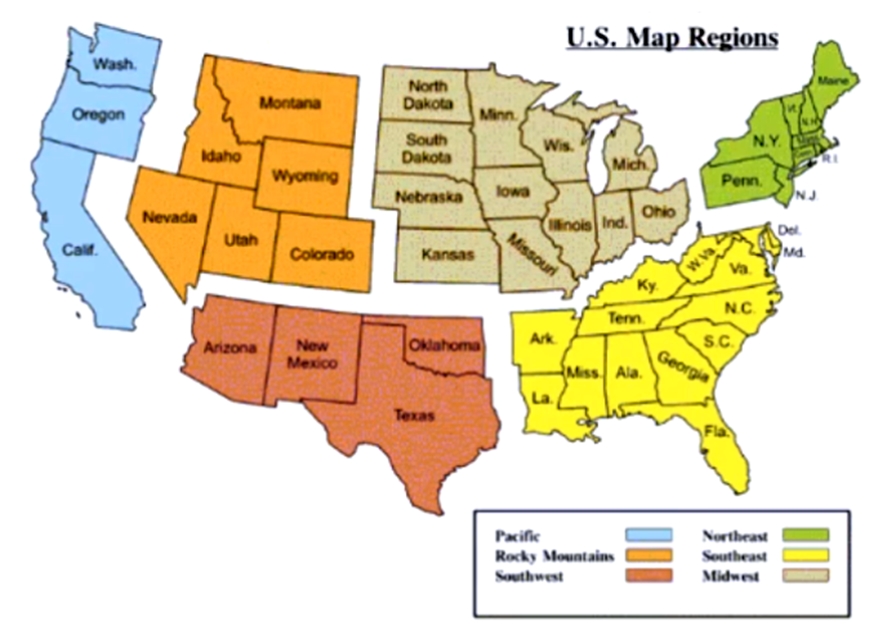
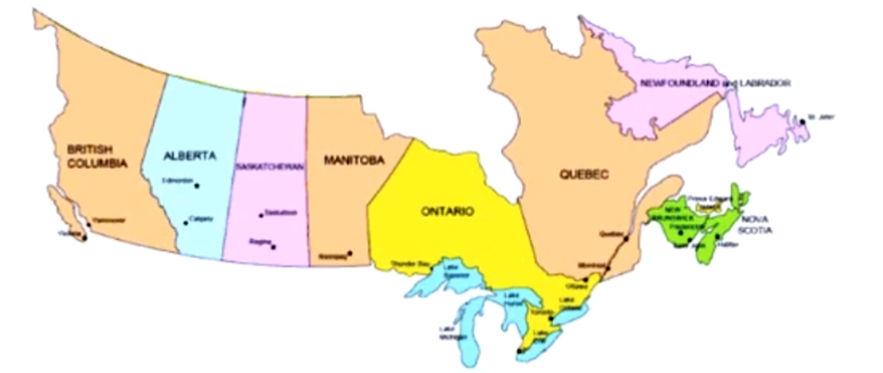
Canadian regions are broken down by province where Litware, Inc. either has stores or provides services:
Existing Environment. Data management structure
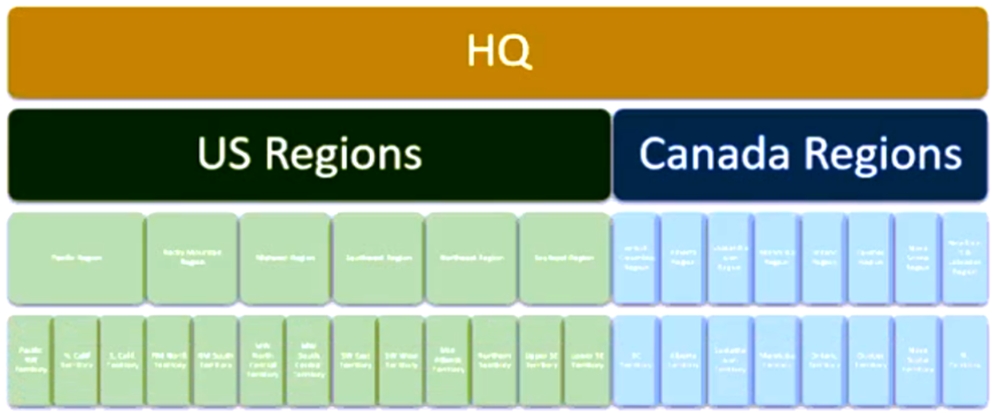
Litware, Inc, store employees can see data within their region. This is to provide better support of customers and stores within the regions.
The current data access structure appears as follows:
Existing Environment. Field Service difficulties
Typical job assignment is as follows:
-Appliance Delivery & Hookup: 2 resources - subcontracted out
-Landscaping: minimum 2 resources. 1 expert
-Carpeting: 2-3 resources
-Tile Flooring: 2 resources
-Kitchen Cabinets: 3 resources
-Hardwood Flooring: 2 resources
-Repairs: 1-2 resources
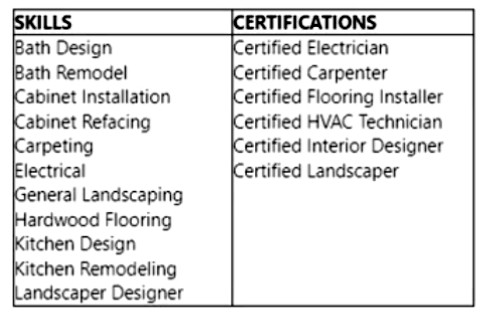
A spreadsheet tracks the skills and certifications earned by each internal employee. They are:
The Skill Proficiency Model used at Litware, Inc. is as follows:
1- Novice
2 - Inexperienced
3 - Moderate Experience
4 - Experienced
5 - Expert/Certified
For each type of job, there must be at least one certified or highly experienced resource on the job. Their current system does not have a way to share technical documents and instructions with the technicians and have them review it while onsite.
All work is printed out and the provided to the resources. Contractors are currently emailed the job details to which they need to confirm availability. Contractors sometimes decline work. In some of these cases, the Litware, Inc. dispatch team does not react quickly to this information and the customer’s work or delivery is delayed.
Existing Environment. Customer base
Currently all customers and their data are held in Dynamics 365 Finance and Operations (D365 F&O).
-Most store employees do not have access to this data as it is currently being implemented for backend features, such as inventory and invoicing.
-Designers and those scheduling can pull up a customer and their pending orders and installations, but they cannot see the payment details and terms.
85% of Litware’s customers are households.
15% are construction-based companies that either purchase or hire Litware, Inc. for specific jobs.
-Most of these companies receive a 5-10% discount on supplies and 10% discount on labor.
-Some are Non-Profit Organizations (NPOs) and they receive a flat 15% discount.
Requirements. Planned changes
Litware, Inc. plans to implement Dynamics 365 Field Service. The requirements gathered during analysis are:
Work Orders and Scheduling
-Scheduling based on resource skill, and number of required resources based on job type and duration.
-Preventative Maintenance emergency calls take priority over other types of jobs.
-Schedule resources based on location, maximizing total work hours and then minimizing drive time.
-All HVAC down jobs require a resource to be onsite at the customer location within 2 hours, per contract terms.
-Some high-end HVAC systems can tell the company when the system is experiencing issues. Alert dispatchers when this occurs if this feature is enabled and purchased.
-Set contractually obligated times for HVAC down jobs.
-Set reminders or see critical details to act on for a job.
-Ability to quickly book a job.
-Easily see when a resource is on Paid Time Off on the schedule board.
Service Contracts
-Set up and create a Preventative Maintenance (PM) type of contracts.
-PM contracts are only for HVAC systems. Semi-annual maintenance jobs should be created 30-days before they are to be scheduled.
-Preventative Maintenance
-Semi-annual inspections
-Discount on any required parts and additional labor.
-Include 24-hour emergency service calls at no-charge.
Extended Warranties
-Ability to setup and create an Extended Warranty type of contracts.
-Start when Manufacturer warranty ends.
-Can be purchased for 1, 2 or 3 years and include all parts and labor.
Products and Services
-Integration between D365 F&O and D365 Field Service.
-Implement a parts return process for any unused or defective part during an installation job.
-Multiple price lists will be used, based on region and customer type (retail, NPO, construction).
Resources
-Implement company holidays for US and Canada.
-Implement various pay types based on OT, Weekends/Holidays, Travel and Regular Time.
-Implement Paid Time Off.
Optimize resource schedules
-Access to jobs assigned for the day.
-Specialty equipment scheduled on work orders as needed.
System
-Geocoding will be activated throughout the system.
-Territories will be used for Accounts, Resources and Work Orders.
-Enable SharePoint integration.
Requirements. Technical requirements
Invoicing
-Send Work Order details to D365 F&O when a job is completed, and after internal reviews are performed.
-The system must track the price of resources based on holidays and after-hours scenarios at a rate of one and a half times the normal billing rate.
-Travel time is non-billable. Travel time should be captured as normal billing rate.
-A Delivery Fee of $75 is charged for each order.
-Subcontractor travel time is non-billable but is paid to the subcontractor company by Litware, Inc.
Resources
-Contractor technicians require access to work order and customer details once assigned to a booking. They do not have a license.
-Dispatchers need a schedule board for their region(s).
-Resources have access to view their skills, skill level and certification data.
-Certifications set to expire over the next 120 days should show highlighted in Yellow.
-Certifications already expired will show in Red.
-Resources will be notified when they enter or leave a job, or are assigned a job for the day.
-Resource booking automatically updated when they enter job site.
-High priority jobs will send an alert to the resources’ phone and send them a text message.
-Resources assigned to a job where their skill level = 1 will be assigned to an experienced resource for 3 months.
-Resources on the job can use their smartphone to call and obtain assistance.
-Resources can access documents either online or offline.
Products and Services
-All parts removed from a customer’s equipment must be returned to the Main warehouse.
-All parts not used or deemed defective during an installation must be returned to the originating warehouse.
-All appliances and parts will become part of the customer record.
-All products are received into the Main warehouse and then distributed to van stock for delivery or installation.
-All assets that have an expired manufacturer warranty should show a notification.
Work Orders
-The ability to have templates for work orders. Templates will provide guidance for technicians, and recommend products and default services.
-Work Orders created from a PM contract need to have a status = Service Contract.
-Work Orders created from an Extended Warranty contract need to have a status = Extended Warranty
-All HVAC down work orders must be set to high priority.
-All emergency, and contractual Work Orders must be created, reviewed and dispatched within 1 hour. A technician must be onsite within 2 hours.
-All Work Orders created from a PM are non-billable.
-All Extended Warranty jobs must include a flat service fee of $75.
Scheduling
-High Priority work orders for HVAC down cannot be moved once scheduled.
-Work Orders scheduled to technician(s) who do not have the desired skill set and level should show a warning.
-If scheduled, it will send an approval record to the manager to approve the assignment. Approved are booked. Rejected are canceled and the dispatcher notified.
-Dispatchers will assign multi-day work orders, such as kitchen cabinets, bathrooms, landscaping, to the same group of resources for the duration of the work.
-All work orders for an existing asset, where the asset does not have an active manufacturer’s warranty, or a valid extended warranty should show an alert upon scheduling.
-Resources should be optimized for high priority items, maximize their work hours and then minimize travel time.
Security and access
-Safeguards must be in place for the data on the Field Service Mobile app if a technician loses his mobile device.
-Technicians in the field should only see work orders scheduled for today.
-Field Service administrators need the ability to update the defaults for the schedule assistant.
Accounts
-NPO customers should be assigned the NPO pricing.
-NPO customers are tax exempt. They are the only customers that do not get charged tax on products or services.
-Construction-Based customers should be assigned the Construction-based pricing.
-