Case Study
Instructions
This is a case study. Case studies are not timed separately from other exam sections. You can use as much exam time as you would like to complete each case study. However, there might be additional case studies or other exam sections. Manage your time to ensure that you can complete all the exam sections in the time provided. Pay attention to the Exam Progress at the top of the screen so you have sufficient time to complete any exam sections that follow this case study.
To answer the case study questions, you will need to reference information that is provided in the case. Case studies and associated questions might contain exhibits or other resources that provide more information about the scenario described in the case. Information provided in an individual question does not apply to the other questions in the case study.
A Review Screen will appear at the end of this case study. From the Review Screen, you can review and change your answers before you move to the next exam section. After you leave this case study, you will NOT
be able to return to it.
To start the case study
To display the first question in this case study, select the "Next" button. To the left of the question, a menu provides links to information such as business requirements, the existing environment, and problem statements. Please read through all this information before answering any questions.
When you are ready to answer a question, select the "Question" button to return to the question.
Overview
Contoso, Ltd. is a consulting company that has a main office in Montreal and three branch offices in Seattle,
Boston, and Johannesburg.
Existing Environment
Microsoft 365 Environment
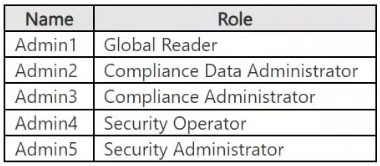
Contoso has a Microsoft 365 E5 tenant. The tenant contains the administrative user accounts shown in the following table.
Users store data in the following locations:
● SharePoint sites
● OneDrive accounts
● Exchange mailboxes
● Exchange public folders
● Teams chats
● Teams channel messages
When users in the research department create documents, they must add a 10-digit project code to each document. Project codes that start with the digits 999 are confidential.
Contoso is not using Optical character recognition (OCR) in Microsoft 365.
SharePoint Online Environment
Contoso has four Microsoft SharePoint Online sites named Site1, Site2, Site3, and Site4.
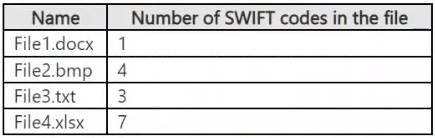
Site2 contains the files shown in the following table.
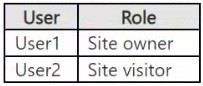
Two users named User1 and User2 are assigned roles for Site2 as shown in the following table.
Site3 stores documents related to the company's projects. The documents are organized in a folder hierarchy based on the project.
Site4 has the following two retention policies applied:
● Name: Site4RetentionPolicy1
- Locations to apply the policy: Site4
- Delete items older than: 2 years
- Delete content based on: When items were created
● Name: Site4RetentionPolicy2
- Locations to apply the policy: Site4
- Retain items for a specific period: 4 years
- Start the retention period based on: When items were created
- At the end of the retention period: Do nothing
Problem Statements
Management at Contoso is concerned about data leaks. On several occasions, confidential research department documents were leaked.
Requirements
Planned Changes
Contoso plans to create the following data loss prevention (DLP) policy:
● Name: DLPpolicy1
● Locations to apply the policy: Site2
● Conditions:
- Content contains any of these sensitive info types: SWIFT Code
- Instance count: 2 to any
● Actions: Restrict access to the content
Technical Requirements
Contoso must meet the following technical requirements:
● All administrative users must be able to review DLP reports.
● Whenever possible, the principle of least privilege must be used.
● For all users, all Microsoft 365 data must be retained for at least one year.
● Confidential documents must be detected and protected by using Microsoft 365.
● Site1 documents that include credit card numbers must be labeled automatically.
● All administrative users must be able to create Microsoft 365 sensitivity labels.
● After a project is complete, the documents in Site3 that relate to the project must be retained for 10 years.