Free AZ-800 Exam Braindumps
Administering Windows Server Hybrid Core Infrastructure Questions 129–136 (page: 18)

Updated On: 9-Aug-2026

HOTSPOT (Drag and Drop is not supported)
Your network contains an Active Directory Domain Services (AD DS) domain. The domain contains three servers named SRV1, SRV2, and SRV3 that run Windows Server. The domain contains a user named User1.
You plan to perform the following tasks:
-Sign in to SRV1 as User1.
-Establish a PowerShell remoting session from SRV1 to SRV2.
-From the remoting session, invoke a command that targets SRV3 and runs the command in the security context of User1.
You need to configure resource-based Kerberos constrained delegation to support the planned tasks.
How should you complete the PowerShell script? To answer, select the appropriate options in the answer area.
Note: Each correct selection is worth one point.
Hot Area:

  1. See Explanation section for answer.

Answer(s): A

Explanation:


Box 1: $SRV3 $SRV3 is the target server.
Box 2: $SRV2 $SRV2 is the source server.
Set the PrincipalsAllowedToDelegateToAccount property: Use the Set-ADComputer cmdlet to modify the target server's AD object. The PrincipalsAllowedToDelegateToAccount parameter should be set to the source server's AD computer object. For example:
Code
# Get the source and target server AD objects $SourceServer = Get-ADComputer -Identity "SourceServerName" $TargetServer = Get-ADComputer -Identity "TargetServerName"
# Configure constrained delegation Set-ADComputer -Identity $TargetServer -PrincipalsAllowedToDelegateToAccount $SourceServer


Reference:

https://learn.microsoft.com/en-us/powershell/scripting/security/remoting/ps-remoting-second-hop


HOTSPOT (Drag and Drop is not supported)
You have 100 on-premises servers that run Windows Server and are Azure Arc-enabled.
You have an Azure subscription.
You deploy a Custom Script Extension to the servers by using the following Azure Resource Manager (ARM) template.

You regenerate the storage account key and update the template.
You need to meet the following requirements:
-Ensure that the script runs again on the servers.
-Minimize the risk of the key being compromised on the servers.
What should you do? To answer, select the appropriate options in the answer area.
Note: Each correct selection is worth one point.
Hot Area:

  1. See Explanation section for answer.

Answer(s): A

Explanation:


Box 1: Change the value of the AutoUpgradeMinorVersion property to true To ensure that the script runs again
AutoUpgradeMinorVersion:
This property is used during VM creation and while you upgrade the VM with a new configuration. *-> When set to true, it ensures that the latest minor version of the extension is automatically installed on the VM. It overrides the TypeHandlerVersion with the latest stable minor version available.
When you upgrade the VM configuration, if a new minor version is available, it's considered a configuration change. The extension is reinstalled with the latest minor version. In this way, newly created VMs keep up to date with the latest stable minor extension version. If you want to manually set the extension to a specific version, set this property to false.
Box 2: Remove the storageAccountkey property and add the managedIdentity property to the protectedSettings object. To minimize the risk of compromised key
In an Azure Resource Manager (ARM) template, protectedSettings are used to pass sensitive information to resources like virtual machine extensions, such as passwords or connection strings. This information is encrypted and not displayed in clear text, preventing it from being retrieved in logs or the plain text settings file on the VM. Instead of putting secrets directly in the main settings block, they are placed in protectedSettings for secure handling.
Azure Arc-enabled servers use a managed identity to authenticate and run extension scripts, which are downloaded to the server. The Azure Connected Machine Agent automatically creates and manages a system-assigned managed identity for the server, allowing it to authenticate to Azure and other resources without storing credentials. Extensions use this identity to perform tasks like deploying other extensions, updating server status, and accessing other Azure resources, such as Key Vault or Azure Monitor.
Incorrect:
* Move the storageAccountName and the storageAccountKey property to the protectedSettings object.


Reference:

https://learn.microsoft.com/en-us/azure/virtual-machines/automatic-extension-upgrade https://learn.microsoft.com/en-us/azure/azure-arc/servers/manage-vm-extensions-template https://learn.microsoft.com/en-us/azure/azure-arc/servers/managed-identity-authentication


Your network contains an Active Directory Domain Services (AD DS) domain named contoso.com. The domain contains two servers named Server1 and Server2 that run Windows Server. The domain contains two users named User1 and User2.
You perform the following tasks:
-Enable Remote SSH Access on Server2.
-Sign in to Server1 as User1.
You need to establish an SSH session from Server1 to Server2 and sign in as User2.
Which command should you run?

  1. sshd Contoso\User2@Server2
  2. ssh Contoso\User2@Server2
  3. ssh Server2 Contoso\User2
  4. sshd Server2 Contoso\User2

Answer(s): B

Explanation:

To establish an SSH session from the first server to Server2 and sign in specifically as User2, use the following standard OpenSSH command syntax: ssh User2@Server2
Command Variations for Domain Environments Depending on your Active Directory configuration and how you prefer to specify the domain user, you can also use these variations: UPN Format: ssh User2@domain.com@Server2 *-> Down-Level Logon Name: ssh "domain\User2"@Server2 (Quotes are necessary to handle the backslash in many shells) Login Flag: ssh -l User2 Server2
Incorrect: [Not A, Not D] sshd (SSH Daemon): The program that runs in the background on the remote server. The "d" stands for daemon. It listens for incoming connection requests (usually on port 22), handles user authentication, and manages the secure session once you’ve logged in.


Reference:

https://www.unixtutorial.org/reference/ssh/


HOTSPOT (Drag and Drop is not supported)
You have a server that runs Windows Server and contains 10 physical disks.
You plan to implement storage spaces that will use the disks.
You are evaluating whether to configure the following options:
-A two-way mirror
-A parity storage layout
What is the maximum number of disks that can fail without data loss for each option? To answer, select the appropriate options in the answer area.
Note: Each correct selection is worth one point.
Hot Area:

  1. See Explanation section for answer.

Answer(s): A

Explanation:


Box 1: 5 In a Windows Server Storage Spaces environment with 10 physical disks configured as a two-way mirror, the answer depends on the timing and the location of the failures.
The Short Answer Guaranteed Safety: 1 disk. Theoretical Maximum: 5 disks (only if they are the "wrong" 5 disks).
How it Works In a two-way mirror, Windows writes two copies of your data (slabs) across two different physical drives. Because you only have two copies of any given piece of data, the pool remains functional as long as at least one copy of every "slab" exists.
Box 2: 2 In a Windows Server Storage Spaces environment with 10 physical disks and a parity layout, the number of disks that can fail depends entirely on whether you have configured Single Parity or Dual Parity.
1. Single Parity This is the default setting for many basic setups. It functions similarly to RAID 5. Fault Tolerance: 1 disk failure.
How it works: Data and parity information are striped across all 10 disks. If one drive fails, the system uses the remaining data and parity bits to reconstruct the missing information.
Risk: If a second disk fails before the first one is replaced and rebuilt, the entire virtual disk (and all data) will be lost.
2. Dual Parity [Assume this, as it is more fault tolerant] This is available in Windows Server (and required for Storage Spaces Direct in many scenarios). It functions similarly to RAID 6. Fault Tolerance: 2 disk failures.
How it works: Two sets of parity information are calculated and stored. This allows the pool to remain online even if two disks fail simultaneously. Requirement: To use Dual Parity, you generally need a minimum of 7 disks (which you satisfy with 10).


Reference:

https://www.reddit.com/r/DataHoarder/comments/4eo5ou/is_raid5_raidz_ok_for_home_media_server/


View Related Case Study

HOTSPOT (Drag and Drop is not supported)
You need to meet technical requirements for HyperV1.
Which command should you run? To answer, select the appropriate options in the answer area.
Note: Each correct selection is worth one point.
Hot Area:

  1. See Explanation section for answer.

Answer(s): A

Explanation:


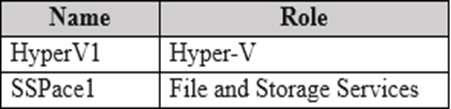
Box 1: hvc.exe A direct SSH session must be used to manage all the supported virtual machines on HyperV1. HyperV1 has the Hyper-V role. HyperV1 contains the virtual machines shown in the following table.
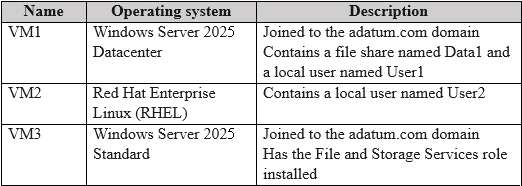
* VM1 with Windows Server 2025 Datacenter. VM1 contains a local user named User1.
* VM2 with Red Hat Enterprise Linux (RHEL). VM2 contains a local user named User2.
* VM3 with Windows Server 2025 standard All the virtual machines on HyperV1 have only the default management tools installed.
PowerShell Direct & HVC
If you want to interact with your virtual machine running on Windows 10, you can use the Hyper-V Manager and the console to interact with the operating system directly. However, there are also two other options that allow you to manage and access the VMs using the command line. PowerShell Direct lets you create a PowerShell remoting session to the virtual machine using the VM Bus, so no networking is required. The same applies to Linux virtual machines and the HVC tool, which allows you to create an SSH connection directly into the VM. Both options also allow you to copy files to and from virtual machines.
How to connect to Linux VMs using SSH Direct To connect to Linux VMs using SSH Direct (HVC) type hvc.exe into the command line or PowerShell. This will give you all the possible command options. Of course, SSH has to be configured inside the Linux virtual machine.
hvc ssh Thomas@VMNAME To make this work, the SSH server inside the VM needs to be configured.
Box 2: User2@VM2 Only VM2 is Linux. VM2 contains a local user named User2
Incorrect:
* Connect-PSSession Reconnects to disconnected sessions.
The Connect-PSSession cmdlet reconnects to user-managed PowerShell sessions (PSSessions) that were disconnected. It works on sessions that are disconnected intentionally, such as by using the Disconnect-PSSession cmdlet or the InDisconnectedSession parameter of the Invoke-Command cmdlet, and those that were disconnected unintentionally, such as by a temporary network outage.
Example: Reconnect to a session Connect-PSSession -ComputerName Server01 -Name ITTask
Id Name ComputerName State ConfigurationName Availability -- ---- ------------ ----- ----------------- ------------ 4 ITTask Server01 Opened ITTasks Available This command reconnects to the ITTask session on the Server01 computer.
* Connect-WSMan Description This cmdlet is only available on the Windows platform.
The Connect-WSMan cmdlet connects to the WinRM service on a remote computer, and it establishes a persistent connection to the remote computer. You can use this cmdlet in the context of the WSMan provider to connect to the WinRM service on a remote computer. However, you can also use this cmdlet to connect to the WinRM service on a remote computer before you change to the WSMan provider. The remote computer appears in the root directory of the WSMan provider.
About WS-Management Windows Remote Management is the Microsoft implementation of the WS-Management protocol, a standard SOAP-based, firewall-friendly protocol that allows hardware and operating systems from different vendors to interoperate. The WS-Management protocol specification provides a common way for systems to access and exchange management information across an information technology (IT) infrastructure. WS-Management and Intelligent Platform Management Interface (IPMI), along with the Event Collector, are components of the Windows Hardware Management features.
* mstsc.exe It is a command interface to run Microsoft Remote Desktop Client (Remote Desktop Connection) in Windows. Then, you can establish a connection to a remote computer on the same network or different networks, if the Remote Desktop has been enabled on the remote PC.


Reference:

https://techcommunity.microsoft.com/t5/itops-talk-blog/hyper-v-for-developers-on-windows-10/ba-p/1062570
https://learn.microsoft.com/en-us/powershell/module/microsoft.powershell.core/connect-pssession https://learn.microsoft.com/en-us/powershell/module/microsoft.wsman.management/connect-wsman


View Related Case Study

HOTSPOT (Drag and Drop is not supported)
You need to meet the technical requirements for VM1.
Which cmdlet should you run first? To answer, select the appropriate options in the answer area.
Note: Each correct selection is worth one point.
Hot Area:

  1. See Explanation section for answer.

Answer(s): A

Explanation:


Reference:

https://docs.microsoft.com/en-us/virtualization/hyper-v-on-windows/user-guide/nested-virtualization


View Related Case Study

You need to meet the technical requirements for VM2.
What should you do?

  1. Implement shielded virtual machines.
  2. Enable the Guest services integration service.
  3. Implement Credential Guard.
  4. Enable enhanced session mode.

Answer(s): D


You have a server named Host1 that has the Hyper-V server role installed. Host1 hosts a virtual machine named VM1.
You have a management server named Server1 that runs Windows Server. You remotely manage Host1 from Server1 by using Hyper-V Manager.
You need to ensure that you can access a USB hard drive connected to Server1 when you connect to VM1 by using Virtual Machine Connection.
Which two actions should you perform? Each correct answer presents part of the solution.
Note: Each correct selection is worth one point.

  1. From the Hyper-V Settings of Host1, select Allow enhanced session mode.
  2. From Virtual Machine Connection, select Show Options, and then select the USB hard drive.
  3. From Virtual Machine Connection, switch to a basic session.
  4. From Disk Management on Host1, select Rescan Disks.
  5. From Disk Management on Host1, attach a virtual hard disk.

Answer(s): A,B


Reference:

https://docs.microsoft.com/en-us/windows-server/virtualization/hyper-v/learn-more/use-local-resources-on-hyper-v-virtual-machine-with-vmconnect


Viewing page 18 of 39
Viewing questions 137 - 144 out of 311 questions


Post your Comments and Discuss Microsoft AZ-800 exam prep with other Community members:

AI Tutor AI Tutor 👋 I’m here to help!