Overview
XyzCom, Ltd. Is a sales company in the manufacturing industry. It has subsidiaries in multiple countries/regions, each with its own localization. The subsidiaries must be data-independent from each other. XyzCom. Ltd. uses an external business partner to manage the subcontracting of some manufacturing items. XyzCom. Ltd. has different sectors with data security between sectors required. XyzCom, Ltd. uses Business Central online as the main ERP for financial. sales, purchase, warehouse, and manufacturing processes. It has employees that use the Business Central web application and external applications. The company has a custom external mobile app under development The IT department and its partners installed custom extensions to satisfy the company's requirements where the functionality is not available natively. XyzCom. Ltd. interacts with external services provided by customers and partners. Different applications interact with SOAP and OData endpoints exposed from Business Central. An external business partner of XyzCom, Ltd exposed a REST API for receiving details about new subcontracting orders and for sending the planned release date of each subcontracting order received.
XyzCom. Ltd. has not activated the monitoring of the tenant and has no internal telemetry for its apps.
Custom reporting must be created to meet the requirements of the different departments. XyzCom, Ltd. has the following tenant management considerations:
IT department
- The IT department requires the ability to monitor the tenant to prevent performance problems and detect possible anomalies.
- The IT department plans to use Azure Application Insights and Log Analytics to inspect the ingested telemetry signals.
- All tenant upgrades are automatically handled by Microsoft. The IT department does not check for update availability or for tenant-related notifications.
- The IT department has not configured the receipt of tenant-related notifications from the Business Central admin center.
External business partner
- The external business partner must add custom telemetry to an application created for XyzCom.
Ltd. to monitor a business process.
- Custom telemetry signals for the application must be visible only on the partner's telemetry.
SOAP
- XyzCom, Ltd. plans to dismiss using the SOAP protocol for integrations.
- XyzCom, Ltd. must be able to detect if external applications are using its Business Central SOAP endpoints.
Issue
The Business Central tenant is upgraded by Microsoft to a new major version during the night. Users report that one of the XyzCom. ltd. extensions disappeared from the tenant The IT department confirms that the extension is still published.
XyzCom. Ltd. plans to create a custom mobile application that has the following requirements:
- The app must be used by employees to check item details from the ERP in real time and to report issues that occur during the manufacturing process.
- An AL extension must be created for handling archived issues.
- Business Central development guidelines must be followed when implementing modules.
- A module must be implemented for the reporting and tracking of issues information. You plan to call this module Issue Management The module must expose a method nan Postlude.
- Code modifications will be required over time.
- The Issue Management process must be split into two extensions:
o ISSUE BASE: main extension o ISSUE EXT: second extension with dependency from ISSUE BASE
- In the version 1.0.0.0 of the ISSUE BASE extension, you plan to create an Issue table that contains a global Decimal variable named Issue Total.
- In the version 1.0.0.0 of the ISSUE BASE extension, you plan to define a table named Issue Category with a Description field defined as follows:
field (2; Description; Text[SG])
{
DataClassificstion * CustoaerContent;
>
- The Issue table defined in ISSUE BASE extension contains a Clone procedure defined as follows:
procedure Corte () begin end;
- In the ISSUE EXT extension, you create a table extension object of the Issue table.
- The table extension object of the Issue table must access the Issue Total: Decimal variable. After weeks of usage, you discover that you must remove the Description field and the Clone procedure because they are no longer required.
In a new version of the ISSUE BASE extension, you create a new Issue Type table. You must move data row by row from a previously obsolete Issue Category table to the new Issue Type table. Because a large amount of data must be moved, you must write an Upgrade codeunit by using the DataTransfer object.
The IT department creates a custom API for exposing the custom Issue table. The API provides an action for copying an issue to a new table. The action is defined as follows:
(Service Enabled]
procedure Copy (vary action Context: WebServiceActionContext) begin end;
XyzCom, Ltd. must create an API in Business Central to expose item details to the mobile application.
- The API must have the lowest possible impact on the production environment when used during working hours.
- The API must only support Get operations.
A user of the ISSUE BASE extension in Business Central reports a problem. To debug the problem, snapshot debugging with the following configuration was activated:
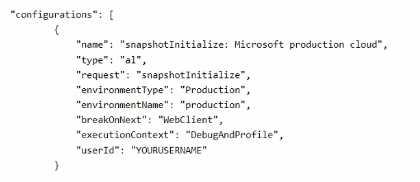
You discover that the debugging is not triggering.
XyzCom, Ltd. must connect Business Central to the external API provided by the business partner. This will be used for the partner to send the details of new subcontracting orders to fulfill the sales demand, and for receiving the planned release date of each order sent. The integration requirements are as follows:
- The business partner will provide a REST API secured with basic authentication. Credentials to access the API will be shared with XyzCom, ltd.
- The API for sending subcontracting orders must be called by sending an authenticated POST request to the given endpoint.
- The API for retrieving the order no. and planned release date of each subcontracting order responds with the following JSON:
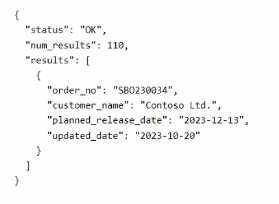
Each order no. must be retrieved.