Case Study:
This is a case study. Case studies are not timed separately. You can use as much exam time as you would like to complete each case. However, there may be additional case studies and sections on this exam. You must manage your time to ensure that you are able to complete all questions included on this exam in the time provided.
To answer the questions included in a case study, you will need to reference information that is provided in the case study. Case studies might contain exhibits and other resources that provide more information about the scenario that is described in the case study. Each question is independent of the other questions in this case study.
At the end of this case study, a review screen will appear. This screen allows you to review your answers and to make changes before you move to the next section of the exam. After you begin a new section, you cannot return to this section.
To start the case study:
To display the first question in this case study, click the Next button. Use the buttons in the left pane to explore the content of the case study before you answer the questions. Clicking these buttons displays information such as business requirements, existing environment, and problem statements. If the case study has an All Information tab, note that the information displayed is identical to the information displayed on the subsequent tabs.
When you are ready to answer a question, click the Question button to return to the question.
Background:
Tailspin Toys is a toy manufacturing company that sells to distributors and customers through a business-to- consumer website. Tailspin Toys has been using custom-developed software for their accounting and supply chain management needs.
Tailspin Toys has toy factories in Mexico and Canada, with a head office based out of the United States. Tailspin Toys is currently operating with various financial departments including accounts payable, accounts receivable, fixed assets, and general accounting. The company has multiple legal entities to support their manufacturing units and selling organization.
Tailspin Toys wants to maintain consistent growth as a company and is now implementing Dynamics 365 Finance for all business processes.
Requirements:
Vendors
Tailspin Toys works with local and foreign vendors.
The procurement process is designed for manufacturing raw materials, finished products, and packing materials for toys.
The company monitors vendor balances by local and foreign vendors, both appearing in different general ledger accounts.
For vendor payments, the accounts payable manager generates payment proposals every Wednesday, to have approvals and check printing done by Thursday in order to mail the checks by Friday of each week. Vendors can take part in the incentive program that offers travel vouchers and other gifts based on quantity and quality of supplies at the end of the year.
Incentive program data is being monitored outside of the system and qualifying vendors are then provided to the financial department for expenses.
The finance department accrues a small percentage of every vendor invoice during the year for this purpose, booking accounts payable liability account offsetting to the incentive expenses account. The finance department accrual then allows management to easily make decisions regarding types of gifts and vouchers to provide to the top-performing vendors.
Reporting
Management gets periodic reports from the finance department for all the legal entities. These reports provide all required finance data and are comprised of balance sheets, income statements, and cash flow statements.
Budget planning
The finance department oversees all budget planning.
The finance department estimates the baseline for all budgets and distributes them to the respective departments.
Each department estimates and forecasts their budget and sends it back to the finance department where the budget is updated accordingly.
Expenses
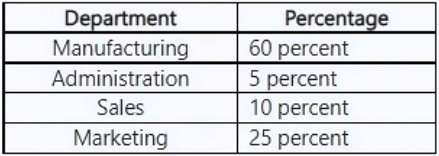
Utility bills for the toy factories are currently getting expensed to the following departments as per the listed breakdown.
Asset leasing
Tailspin Toys has leased assets in the form of factory buildings and warehouses. The company maintains asset books for the monthly leasing payments and pays compound interest on them. Tailspin Toys maintains future forecasts of their payment projections and budget requirements for leasing payments.
Requirements
Consolidation
Automatic foreign currency consolidation at the corporate level is required by Tailspin Toys' leadership.
Consolidated results are needed in multiple reporting currencies.
Expenses
Utility bills must be allocated to allow each department to expense the correct amount.
Reports
Leadership requires financial reports to come to their inbox automatically as one at the end of every month.
Vendors
The system must show accounts payable liability by type of vendor similar to how it works in the current system.
The chief financial officer (CFO) wants to configure the system to follow their business policies of paying vendors every Friday and as per credit issued by vendors and agreed method of payments. The accounts payable administrator must automate the vendor invoice process for imported invoices to bypass the review stage when no discrepancy is determined.
Budgets
A new organizational hierarchy is required for budget planning purposes.
Leadership wants financial budgets enforced by alerting users upon reaching 90% of the total budget.
Asset leasing
The CFO must automatically process payments and journal entries for the leased properties.
Management must view payment forecasts based on leased assets.
Issues
Accounts payable issues
Vendor liability information for local and foreign vendors is not separated in the system.
The accounts payable manager observed that a percentage of each invoice paid to vendors is not being posted for the yearly incentives program.
The accounts payable clerk had to manually invoice a vendor receipt during user acceptance testing.
The accounts payable manager must automate the current process of vendor payment proposals.
Other issues
The differences resulting from consolidating subsidiaries with foreign currencies are not considered.
User A confirmed they did not receive an alert before running out of their budget.
Expense reports for the manufacturing and sales departments do not contain utility bill expenses.
The accounting manager reported that there is no batch journal created for the monthly lease expenses.