Free MS-102 Exam Braindumps
Microsoft 365 Administrator Questions 206–210 (page: 43)

Updated On: 10-Feb-2026
View Related Case Study

HOTSPOT (Drag and Drop is not supported)
You have a Microsoft 365 E5 subscription.
You need to create a Conditional Access policy named Policy1 that will enforce the use of phishing-resistant multifactor authentication (MFA) when a user attempts to register or join devices to a Microsoft Entra tenant.
How should you configure Policy1? To answer, select the appropriate options in the answer area.
NOTE: Each correct selection is worth one point.
Hot Area:

  1. See Explanation section for answer.

Answer(s): A

Explanation:


Box 1: Targets resources Assignments
To use Conditional Access policies for device registration or joining, you'll need to configure a policy that targets the "Register or join devices" user action. This allows you to enforce requirements like MFA or device compliance before a device can be registered or joined to your Entra ID tenant.
Create a New Conditional Access Policy
2. Define Policy Assignments Users or workload identities:
Under Assignments, select Users or workload identities. Include: Select All users.
Exclude: Exclude your emergency access or break-glass accounts.
*-> Targeted Resources:
Under Target resources, select User actions and choose Register or join devices.
Box 2: Set Grant to Require authentication strength Access controls
To enforce phishing-resistant multifactor authentication (MFA) using Conditional Access policies, you'll need to create a policy that requires users to use phishing-resistant authentication methods, like Microsoft Authenticator or passwordless options, when accessing specific resources. This can be achieved by configuring the "Grant access" setting within the policy to "Require authentication strength" and selecting a phishing-resistant authentication strength profile.


Reference:

https://learn.microsoft.com/en-us/entra/identity/conditional-access/policy-all-users-device-registration https://learn.microsoft.com/en-us/entra/identity/conditional-access/policy-admin-phish-resistant-mfa


View Related Case Study

HOTSPOT (Drag and Drop is not supported)
Your network contains an on-premises Active Directory Domain Services (AD DS) domain named
contoso.com. Contoso.com contains the users shown in the following table.
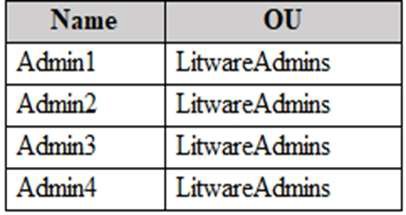

Contoso.com contains the groups shown in the following table.


Group3 has no members.
You have a Microsoft Entra tenant.
You deploy Microsoft Entra Cloud Sync and configure a scoping filter by using the following entry.
CN=Group1,OU=OU2,DC=contoso, DC=com
For each of the following statements, select Yes if the statement is true. Otherwise, select No.
NOTE: Each correct selection is worth one point.
Hot Area:

  1. See Explanation section for answer.

Answer(s): A

Explanation:


Box 1: Yes
Yes - User1 syncs with the Microsoft Entra tenant.
User1 is in Group1 and in OU1. Group1 is in OU2.
User1 is in both Group1 and OU2. User1 will be synced.
Note: To match scoping filter the user must be in Group1 AND in OU2.
Box 2: Yes
Yes - User2 syncs with the Microsoft Entra tenant.
User2 is in Group2 and in OU2. Group2 is member of Group1. User2 is both in Group2 and in OU2. User2 will be synced.
Box 3: No
No - Group3 syncs with the Microsoft Entra tenant.
Group3 is member of Group1. Group1 is on OU1 only. Group3 is member of OU1 only. It is not a member of OU2. The scoping filter does not match Group3.
Group3 will not be synced.
Note:
Filtering options
You can apply the following filtering configuration types to the directory synchronization tool:
Group-based: Filtering based on a single group can only be configured on initial installation by using the installation wizard.
Domain-based: By using this option, you can select which domains synchronize to Microsoft Entra ID. You can also add and remove domains from the sync engine configuration when you make changes to your on- premises infrastructure after you install Microsoft Entra Connect Sync.
* Organizational unit (OU)–based: By using this option, you can select which OUs synchronize to Microsoft Entra ID. This option is for all object types in selected OUs.
* Attribute-based [Does not apply here]
You can use multiple filtering options at the same time. For example, you can use OU-based filtering to only include objects in one OU. At the same time, you can use attribute-based filtering to filter the objects further. When you use multiple filtering methods, the filters use a logical "AND" between the filters.


Reference:

https://learn.microsoft.com/en-us/entra/identity/hybrid/connect/how-to-connect-sync-configure-filtering


View Related Case Study

You have a Microsoft 365 E5 subscription.
You create the users shown in the following table.


You plan to use Microsoft Entra ID Protection.
Which users will be added automatically to the Users at risk detected alerts list?

  1. Admin1 only
  2. Admin2 only
  3. Admin1 and Admin2 only
  4. Admin1 and Admin3 only
  5. Admin1, Admin2, and Admin3

Answer(s): D

Explanation:

Microsoft Entra ID Protection sends two types of automated notification emails to help you manage user risk and risk detections:
Users at risk detected email Weekly digest email
Important
By default, users actively assigned Global Administrator, Security Administrator, or Security Reader roles are automatically added to this list if that user has a valid "Email" or "Alternate email" configured. If a user is enrolled in PIM to elevate to one of these roles on demand, then they will only receive emails if they are elevated at the time the email is sent.


Reference:

https://learn.microsoft.com/en-us/entra/id-protection/howto-identity-protection-configure-notifications


View Related Case Study

HOTSPOT (Drag and Drop is not supported)
Your network contains an on-premises Active Directory Domain Services (AD DS) domain named contoso.com. The domain contains the users shown in the following table.


You have a Microsoft Entra tenant that syncs with contoso.com by using Microsoft Entra Connect Sync. Microsoft Entra Connect Sync is configured as shown in the exhibit. (Click the Exhibit tab.)


The Microsoft Entra tenant contains a cloud-only group named Group1 as shown in the following table.


You perform the following tasks at 10 AM:
In contoso.com, you move User1 to OU2.
In the Microsoft Entra tenant, you delete User2.
In contoso.com, you create a computer account named Comp1 in OU1 and update the description of Comp1.
For each of the following statements, select Yes if the statement is true. Otherwise, select No.
NOTE: Each correct selection is worth one point.
Hot Area:

  1. See Explanation section for answer.

Answer(s): A

Explanation:


Box 1: No
No - By 11 AM, User1 has become a member of Group1.
User1 has on-premises sync enabled.
Domain and OU filtering is configured to sync OU1 and Users. At 10 AM in contoso.com, you move User1 to OU2.
However, there is no mention of any group named Group1.
Box 2: Yes
Yes - At 11 AM, User2 is removed from contoso.com.
At 10 AM, in the Microsoft Entra tenant, you delete User2.
Box 3: No
No - At 11 AM, the Description property of Comp1 syncs to the Microsoft Entra tenant.
Domain and OU filtering is configured to sync OU1 and Users. It is not configured to sync computers.


Reference:

https://learn.microsoft.com/en-us/entra/identity/hybrid/connect/how-to-connect-sync-configure-filtering


View Related Case Study

HOTSPOT (Drag and Drop is not supported)
You need to ensure that the Microsoft 365 incidents and advisories are reviewed monthly.
Which users can review the incidents and advisories, and which blade should the users use? To answer, select the appropriate options in the answer area.
NOTE: Each correct selection is worth one point.
Hot Area:

  1. See Explanation section for answer.

Answer(s): A

Explanation:


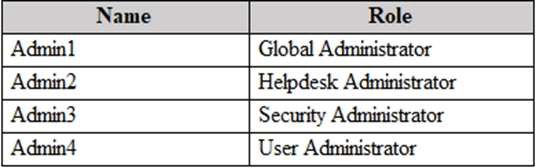
Box 1: Admin1 and Admin3 only
You need the Manage security settings permission to configure email notification settings. If you've chosen to use basic permissions management, users with Security Administrator or Global Administrator roles can configure email notifications.
Scenario:
Microsoft 365 incidents and advisories must be reviewed monthly. Users are assigned the roles shown in the following table.

Box 2: Service health
You can view the health of your Microsoft services, including Office on the web, Viva Engage, Microsoft Dynamics CRM, and mobile device management cloud services, on the Service health page in the Microsoft 365 admin center. If you are experiencing problems with a cloud service, you can check the service health to determine whether this is a known issue with a resolution in progress before you call support or spend time troubleshooting.
* Details omitted *
The All services tab (the default view) shows all services, their current health state, and any active incidents or advisories. An icon and status in the Health column indicate the state of each service.
If there is an active incident or advisory for a service they will be listed directly under the service name in a nested table. You can collapse the nested table to hide the incidents or advisories in this view by clicking on the chevron icon to the left of the service name.
To filter your view to only show all the active incidents, select the Incidents tab at the top of the page. Selecting the Advisories tab will only show all the active advisories posted.
The History tab shows all incidents and advisories that have been resolved within the last seven or 30 days.


Reference:

https://learn.microsoft.com/en-us/microsoft-365/security/defender/incidents-overview https://learn.microsoft.com/en-us/microsoft-365/enterprise/view-service-health?view=o365-worldwide
Manage security and threats by using Microsoft Defender XDR Question Set 2


Viewing page 43 of 85
Viewing questions 211 - 215 out of 473 questions


Post your Comments and Discuss Microsoft MS-102 exam prep with other Community members:

AI Tutor AI Tutor 👋 I’m here to help!