Free AZ-700 Exam Braindumps
Designing and Implementing Microsoft Azure Networking Solutions Questions 161–165 (page: 34)

Updated On: 10-Feb-2026
View Related Case Study

HOTSPOT (Drag and Drop is not supported)

You have an on-premises server named Server that is assigned a public IP address of 131.107.100.200.

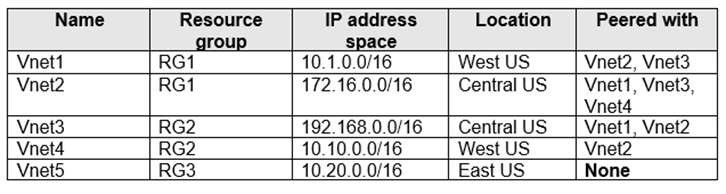
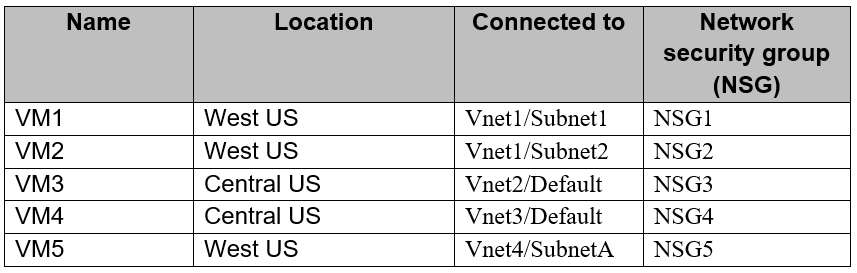
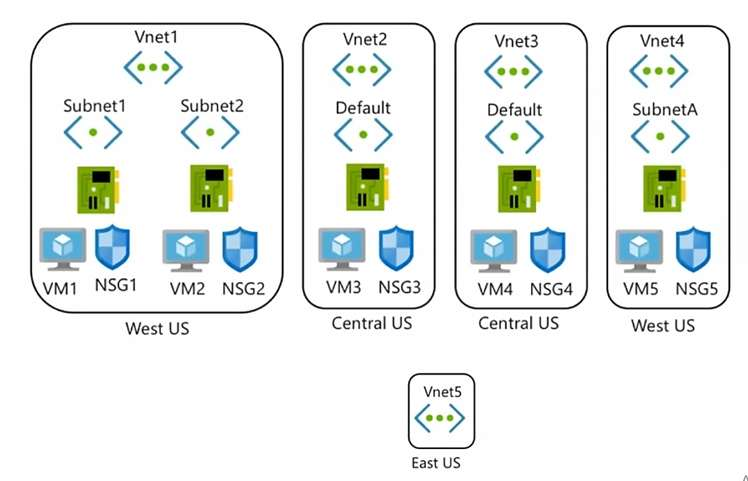
You have an Azure subscription that contains the resources shown in the following table.


storage85347 has the Networking settings configured as shown in the following exhibit.


From the Firewalls and virtual networks tab, you add Subnet1 to storage85347.

For each of the following statements, select Yes if the statement is true. Otherwise, select No.

Note: Each correct selection is worth one point.

Hot Area:

  1. See Explanation section for answer.

Answer(s): A

Explanation:


Box 1: No
No - A service endpoint is created on VNet1.

Box 2: No
No - All the virtual machines can access storage85347

The Virtual Machines in subnet1, but not the machines in subnet2.

Box 3: Yes
Yes - An additional route is created automatically in the route table of Subnet1.


View Related Case Study

You have an on-premises datacenter in Seattle.

You have an Azure subscription that contains an Azure Network Watcher resource in the West US 2 Azure region.

You need to document network latency between the on-premises datacenter and the West US 2 region and between the on-premises datacenter and the East US 2 public Azure region. The solution must minimize administrative effort.

What should you do first?

  1. Run the Get-AzNetworkWatcherConnectionMonitor cmdlet.
  2. Run the Get-AzNetworkWatcherReachabilityProvidersList cmdlet.
  3. Create a Network Watcher resource in the East US 2 region.
  4. Create a Connection Monitor resource in the West US 2 region.

Answer(s): B

Explanation:

View available countries/regions, states, cities, and providers Important: Unlike when you specify a single location, if you don't specify a location, or specify multiple locations, such as "West US2", "West US", you must specify an Internet service provider when running the command. [See step 3 below]
Note in detail:

Step 2: View available countries/regions, states, cities, and providers Data is available for specific Internet service providers, countries/regions, states, and cities. To view a list of all available Internet service providers, countries/regions, states, and cities, that you can view data for, enter the following command:
Get-AzNetworkWatcherReachabilityProvidersList -NetworkWatcherName NetworkWatcher_eastus - ResourceGroupName NetworkWatcherRG
Data is only available for the countries/regions, states, and cities returned by the previous command. The previous command requires you to specify an existing network watcher. The example specified the NetworkWatcher_eastus network watcher in a resource group named NetworkWatcherRG, but you can specify any existing network watcher.
Step 3: Compare relative network latencies across Azure regions from a specific location If, instead of specifying the relative latencies between a specific location and a specific Azure region using - Location, you wanted to determine the relative latencies to all Azure regions from a specific physical location, you can do that too. For example, the following command helps you evaluate what azure region to deploy a service in if your primary users are Comcast users located in Washington state:
Get-AzNetworkWatcherReachabilityReport `
-NetworkWatcherName NetworkWatcher_eastus `
-ResourceGroupName NetworkWatcherRG `
-Provider "Comcast Cable Communications, LLC - ASN 7922" `
-Country "United States" `
-State "washington" `
-StartTime "2017-12-13" `
-EndTime "2017-12-15"
Important: Unlike when you specify a single location, if you don't specify a location, or specify multiple locations, such as "West US2", "West US", you must specify an Internet service provider when running the command.
Incorrect:
Not C:
Step 1: Create a network watcher [Already done]
If you already have a network watcher in at least one Azure region, you can skip the tasks in this section.
Create a resource group for the network watcher. In this example, the resource group is created in the East US region, but you can create the resource group in any Azure region.
New-AzResourceGroup -Name NetworkWatcherRG -Location eastus
Create a network watcher. You must have a network watcher created in at least one Azure region. In this example, a network watcher is created in the East US Azure region.
New-AzNetworkWatcher -Name NetworkWatcher_eastus -ResourceGroupName NetworkWatcherRG - Location eastus


Reference:

https://learn.microsoft.com/en-us/azure/network-watcher/view-relative-latencies


View Related Case Study

HOTSPOT (Drag and Drop is not supported)

You have an Azure subscription that contains the virtual networks shown in the Virtual networks exhibit.


You create an Azure DNS Private Resolver as shown in the DNS private resolvers exhibit.


DNS-resolver-inbound-endpoint-1 is configured as shown in the Inbound endpoints exhibit.


DNS-resolver-rule-1 is configured as shown in the Rules exhibit.


For each of the following statements, select Yes if the statement is true. Otherwise, select No.

Note: Each correct selection is worth one point.

Hot Area:

  1. See Explanation section for answer.

Answer(s): A

Explanation:


Box 1: No
No - VNet1 can be linked to DNS-resolver-ruleset-1.

Vnet1 is in RG1 in East US.
The DNS private resolver is in RG1 in West Europe in Vnet3, and has DNS-resolver-ruleset-1.

Note: A DNS resolver can only reference a virtual network in the same region as the DNS resolver.

Box 2: Yes
Yes - VNet2 must be configured to use 10.3.1.4 as the preferred DNS server.

Vnet1 is in RG1 in East US.
Vnet2 is in RG1 in East US.
Endpoint DNS-resolver-inbound-endpoint-1 has IP address 10.3.1.4.

Note: When you create an Azure DNS Private Resolver inside a virtual network, one or more inbound endpoints are established that can be used as the destination for DNS queries.

Box 3: Yes
Yes - Virtual machines connected to VNet3 can resolve names in the MargiesTravel.com domain.

DNS-resolver-.ruleset-1 has Domain name MargiesTravel.com, is configured with a Destination IP:Port, and the rule is enabled.

Note: The resolver's outbound endpoint processes DNS queries based on a DNS forwarding ruleset that you configure. DNS queries that are initiated in networks linked to a ruleset can be sent to other DNS servers.


Reference:

https://learn.microsoft.com/en-us/azure/dns/dns-private-resolver-overview


View Related Case Study

You have an Azure application gateway named AppGW1 that balances requests to a web app named App1. You need to modify the server variables in the response header of App1.

What should you configure on AppGW1?

  1. URL rewrite rules
  2. path-based rules
  3. listeners
  4. HTTP settings

Answer(s): A

Explanation:

Correct:
* rewrites
* URL rewrite rules
Incorrect:
* HTTP settings
* listeners
* path-based rules
* rules
Note: Rewrite HTTP headers and URL with Application Gateway
Application Gateway allows you to rewrite selected content of requests and responses. With this feature, you can translate URLs, query string parameters and modify request and response headers. It also allows you to add conditions to ensure that the URL or the specified headers are rewritten only when certain conditions are met. These conditions are based on the request and response information.
URL path and query string
With URL rewrite capability in Application Gateway, you can:
* Rewrite the host name, path and query string of the request URL

* Choose to rewrite the URL of all requests on a listener or only those requests that match one or more of the conditions you set. These conditions are based on the request properties (request header and server variables).
* Choose to route the request (select the backend pool) based on either the original URL or the rewritten URL Understanding Rewrites in Application Gateway
A rewrite set is a collection of a Routing Rule, Condition and Action


Reference:

https://docs.microsoft.com/en-us/azure/application-gateway/rewrite-http-headers-url


View Related Case Study

You have an Azure subscription that contains a virtual machine named VM1, a virtual network interface card (NIC) named NIC1, and a Basic SKU public IP address named IP1. NIC1 is attached to VM1. IP1 is associated to NIC1.
You need to upgrade IP1 to the Standard SKU.

What should you do first?

  1. Create a new NIC for VMI.
  2. Disassociate IP1 from NIC1.
  3. Detach NIC1 from VM1.
  4. Stop vM1.

Answer(s): B

Explanation:

To upgrade a Basic SKU public IP address associated with a virtual machine's network interface in Azure, you need to first dissociate the Basic IP, then upgrade it to Standard SKU, and finally reassociate it with the network interface.
Here's a step-by-step guide:
1. Locate the Public IP:
Navigate to the Public IP address resource in the Azure portal.
2. Verify Static Assignment:
Ensure the Basic Public IP is assigned statically. If not, change the assignment to Static.
*-> 3. Dissociate the IP:
In the Public IP's overview, click "Dissociate" and confirm the action. This will temporarily interrupt network traffic to the VM from the internet.
4. Upgrade to Standard SKU:
Click the "Upgrade to Standard SKU" link. Acknowledge the warning that the upgrade is irreversible and cannot be reversed, then click "Upgrade".
5. Reassociate the IP:
After the upgrade, click "Associate", select the Network Interface of your VM, and associate the newly upgraded Standard SKU IP with it.


Reference:

https://learn.microsoft.com/en-us/azure/virtual-network/ip-services/public-ip-upgrade-vm


Viewing page 34 of 75
Viewing questions 166 - 170 out of 396 questions


Post your Comments and Discuss Microsoft AZ-700 exam prep with other Community members:

AI Tutor AI Tutor 👋 I’m here to help!