Free SC-500 Exam Braindumps
Implementing End-to-End Security Controls for Cloud and AI Workloads Questions 52–56 (page: 13)

Updated On: 23-Oct-2026
View Related Case Study

DRAG DROP (Drag and Drop is not supported)
You have an Azure subscription named Sub1 that contains a storage account named storage1. storage1 hosts a blob container named container1.
Sub1 is linked to a Microsoft Entra tenant that contains a security group named Group1.
You need to ensure that Group1 can use the Azure portal to view the blobs in container1. The solution must follow the principle of least privilege.
Which roles should you assign to Group1. To answer, drag the appropriate roles to the correct objects. Each role may be used once, more than once, or not at all. You may need to drag the split bar between panes or scroll to view content.
Note: Each correct selection is worth one point.
Select and Place:

  1. See Explanation section for answer.

Answer(s): A

Explanation:


Box 1: Storage Blob Data Reader
To allow the security group to view the blobs in the container using the Azure portal while maintaining the principle of least privilege, you must assign the following roles:
For the blob container: Storage Blob Data Reader
The Storage Blob Data Reader role allows the group to read and list the actual blob data inside the container using Microsoft Entra ID authentication. Assigning this at the container scope keeps permissions strictly limited to that specific container.
Box 2: Reader
For the storage account: Reader
The Reader role at the storage account scope is necessary for Azure portal navigation. Without it, users cannot navigate through the Azure portal UI to find and click on the storage account or see the container list. The Reader role only grants visibility into the management plane (resource properties) and does not grant access to the underlying data.


Reference:

https://learn.microsoft.com/en-us/azure/storage/blobs/authorize-data-operations-portal


View Related Case Study

HOTSPOT (Drag and Drop is not supported)
You need to deploy the Phishing Triage Agent in Microsoft Security Copilot to manage phishing incidents in Microsoft Defender XDR.
The solution must meet the following requirements:
-Manage the phishing incidents.
-Enable the Phishing Triage Agent.
-Follow the principle of least privilege.
Which roles should you assign? To answer, select the appropriate options in the answer area.
Note: Each correct selection is worth one point.
Hot Area:

  1. See Explanation section for answer.

Answer(s): A

Explanation:


Box 1: Security Operator in Microsoft Entra and Security Copilot Contributor
To enable the Phishing Triage Agent in Microsoft Security Copilot while adhering strictly to the principle of least privilege, you should assign the following two roles:
Microsoft Entra Role: Security Operator
Microsoft Security Copilot Role: Security Copilot Contributor
Security Operator: This role provides the necessary permissions to manage operational security tasks and interact with incidents within Microsoft Defender XDR without granting excessive global administrative rights or broad data modification rights across other Microsoft portals.
Security Copilot Contributor: This role allows the agentic platform to utilize Copilot capabilities, run prompts, and manage agent behaviors without having full admin access to modify Security Copilot tenant configurations (which would require the Security Copilot Owner role).
Box 2: Security Operator in Microsoft Entra and Security Copilot Contributor
To manage phishing incidents using the Phishing Triage Agent in Microsoft Defender XDR while strictly adhering to the principle of least privilege, you should assign the following two roles:
Entra Role: Security Operator
Copilot Role: Contributor
Security Operator vs. Security Administrator / Global Administrator: The Security Operator role provides the necessary permissions to read security data, manage alerts, and triage incidents without granting broad configuration or destructive management privileges inherent to a Security Administrator or Global Administrator.
Contributor vs. Owner: The Contributor role allows the agent to run prompts, access core Security Copilot capabilities, and interact with the data sources to execute investigations. It explicitly leaves out platform-level access management and billing configuration rights held by an Owner.


Reference:

https://github.com/MicrosoftDocs/defender-docs/blob/public/defender-xdr/phishing-triage-agent.md


View Related Case Study

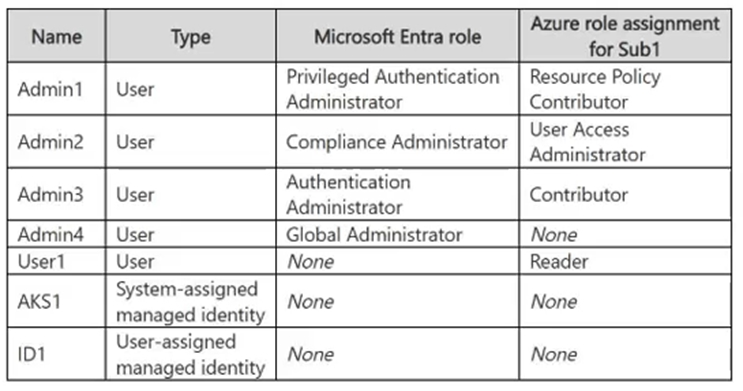
You have a Microsoft Entra tenant that contains the users shown in the following table.

You have a Microsoft Security Copilot workspace.
From Microsoft Security Store, you plan to deploy a partner-built agent named Agent1 that requires access to Microsoft Intune.
When User1 selects Agent1, the Get agent option is unavailable.
You need to enable User1 to complete the agent setup. The solution must follow the principle of least privilege.
What should you do first?

  1. From Security Copilot, create an agent identity for Agent1.
  2. From Security Copilot, configure the required data source for Agent1.
  3. Assign User1 the AI Administrator role in Microsoft Entra.
  4. Assign User1 the Agent ID Administrator role in Microsoft Entra.
  5. Instruct User2 to approve the agent setup.

Answer(s): E

Explanation:

The best first step is to have User2 (the Global Administrator) grant approval or initial consent for the partner-built agent.
When deploying a partner-built agent from the Microsoft Security Store that interfaces with Microsoft products like Microsoft Intune, the agent requires specific backend API permissions to access tenant data. Because User1 only holds the Security Copilot Contributor role, they do not possess the Microsoft Entra permissions necessary to consent to these data-access requests. As a result, the Get agent button is restricted and unavailable to them.
To resolve this while maintaining the lowest possible administrative footprint, you should follow this tiered deployment process:
Step 1 (Action for User2): Have User2 (Global Administrator) log into the Microsoft Security Store, select the specific partner-built agent, and approve the agent's required permissions. This satisfies the tenant-wide admin consent requirement without upgrading User1's account permanently.
Step 2 (Action for User1): Once tenant approval is granted, User1 (Security Copilot Contributor) will find the Get agent option unlocked. They can then independently finish configuring the agent's identity, triggers, and settings within the Security Copilot workspace.


Reference:

https://learn.microsoft.com/en-us/copilot/security/agents-overview


View Related Case Study

HOTSPOT (Drag and Drop is not supported)
You have an Azure subscription named Sub1 that contains 50 virtual machines. Sub1 has Microsoft Defender for Cloud enabled.
Sub1 contains an Azure key vault named KV1 and an Azure policy that enforces storing all secrets in KV1.
Occasionally, the developers at your company store plaintext tokens and SSH private keys on the virtual machines.
You need to configure Defender for Cloud to detect plaintext secrets on the virtual machines. The solution must minimize administrative changes to the virtual machines.
How should you configure Defender for Cloud? To answer, select the appropriate options in the answer area.
Note: Each correct selection is worth one point.
Hot Area:

  1. See Explanation section for answer.

Answer(s): A

Explanation:


Plan to enable: Defender Cloud Security Posture Management (CSPM)
Feature to enable: Agentless machine scanning
Defender CSPM supports agentless secrets scanning for Azure virtual machines. Enabling agentless machine scanning allows Defender for Cloud to analyze VM disk snapshots for exposed plaintext tokens and SSH private keys without requiring agents or configuration changes on the virtual machines.


Reference:

https://learn.microsoft.com/en-us/azure/defender-for-cloud/secrets-scanning-servers https://learn.microsoft.com/en-us/azure/defender-for-cloud/concept-agentless-data-collection


View Related Case Study

DRAG DROP (Drag and Drop is not supported)
You have two Azure subscriptions named Sub1 and Sub2.
You have two groups named Group1 and Group2. Group1 only has access to Sub1 and Group2 only has access to Sub2.
Sub1 contains a Recovery Services vault named RSVault1 that stores virtual machine backups. RSVault1 is managed by using Group1.
You need to ensure that modifying the backup settings of RSVault1 requires approval from an approver in Group2.
What should you configure for each subscription? To answer, drag the appropriate features to the correct subscriptions. Each feature may be used once, more than once, or not at all. You may need to drag the split bar between panes or scroll to view content.
Note: Each correct selection is worth one point.
Select and Place:

  1. See Explanation section for answer.

Answer(s): A

Explanation:


Box 1: Multi-User Authorization (MUA)
Sub1 (where Group1 and the Vault reside):
Enable Multi-User Authorization (MUA) on the Recovery Services vault.
Associate the vault with the Resource Guard located in Sub2.
Box 2: Resource Guard
Sub2 (where Group2 has access):
Deploy the Azure Resource Guard here.
Assign the Resource Guard Reader and Resource Guard Contributor (or a custom role with authorize actions) roles to Group2 over this Resource Guard.


Reference:

https://learn.microsoft.com/en-us/azure/backup/multi-user-authorization


Viewing page 13 of 43
Viewing questions 61 - 65 out of 207 questions


Post your Comments and Discuss Microsoft SC-500 exam prep with other Community members:

AI Tutor AI Tutor 👋 I’m here to help!